



Stop paying monthly fees for cloud restreaming. Pushing your broadcast to Twitch, YouTube, and Kick natively through OBS Studio costs zero dollars. But configuring the routing is a nightmare. If you send Spotify to YouTube, you catch a DMCA strike. If you configure the encoders wrong, your PC drops frames.
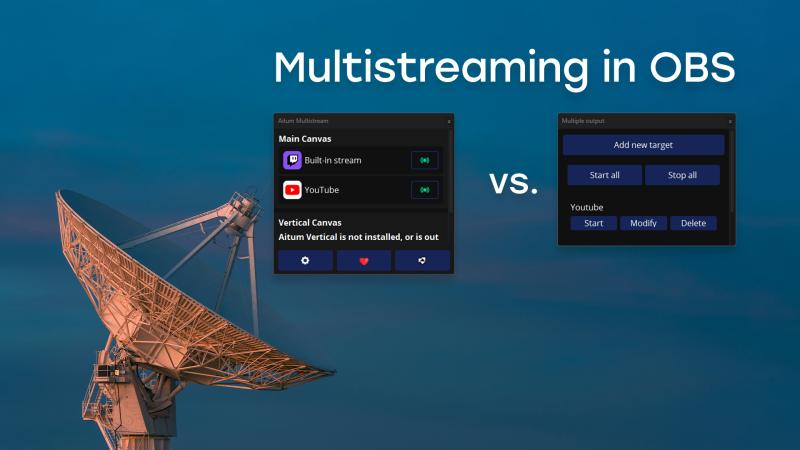
Two OBS plugins handle native multistreaming: Aitum Multistream and Multiple RTMP. Here is the exact breakdown of which one works, how to route your audio tracks, and how to avoid getting banned.
TL;DR / Quick Rules of Thumb
- Use the Aitum Multistream plugin. It integrates cleanly and dynamically syncs with Twitch.
- Route Audio Track 1 for Twitch (music included) and Audio Track 2 for YouTube/Kick (no music).
- Stream at 1440p. This forces Twitch to use the HEVC (H.265) codec and forces YouTube to assign the premium VP9 codec.
How Native OBS Multistreaming Works (Zero Extra PC Load)
Streaming to three platforms does not require three times the PC power. This is a common misconception.
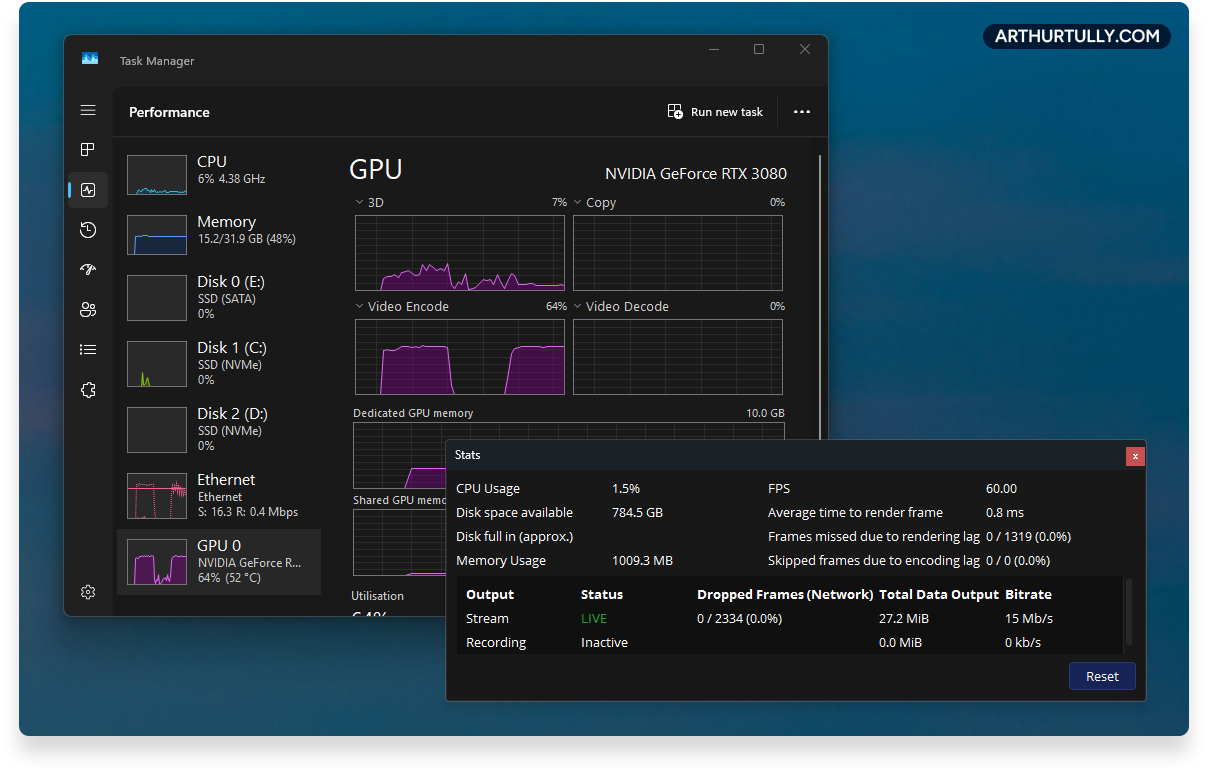
OBS creates a single encoder job. Your GPU (NVENC or AMD) renders the video once. You add zero extra 3D core CUDA usage to your system. The only bottleneck is your internet upload speed. You send one encoded video to three different servers. Your network must support the combined bitrate.

Installation and Usability: Why Aitum Wins
Both plugins function. Aitum provides a superior user experience.
- Aitum: Installs into the ProgramData folder. This isolates it from your core OBS directory. It never breaks your base install. To remove it, delete the folder. The UI is modern and responsive.
- Multiple RTMP: Relies on older file structures. The .zip release requires manually dragging files into your root OBS folders. It is clunky.
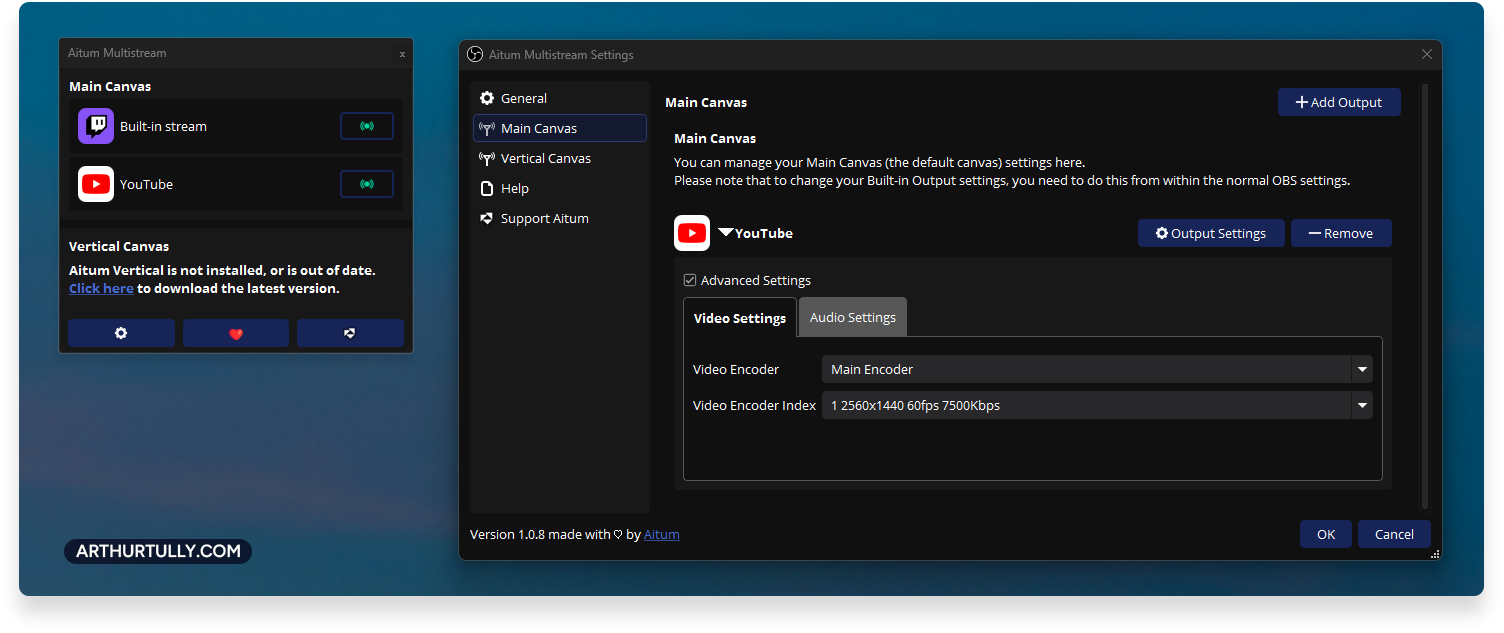
Setting up your destinations in either plugin is simple enough: add your RTMP Server URL, input your stream key, and choose your video/audio settings. But things get complicated when we talk about audio routing.
Setting up RTMP server URLs and stream keys is straightforward. The routing is where streams fail.
The Copyright Fix: Routing Audio for Twitch vs. YouTube
Twitch utilizes a two-track audio system. They cap audio bitrate at 320 kbps. Split this into 160 kbps for the live stream and 160 kbps for the VOD.
- Track 1 (Live): Mic, Voice Chat, Game Audio, Spotify/Copyrighted Music.
- Track 2 (VOD): Mic, Voice Chat, Game Audio. Music is routed out.
Twitch viewers hear the music. Your VOD remains clean.
YouTube and Kick do not support split VOD tracks. If they detect copyrighted music live, they nuke the broadcast.
The Exact Routing Configuration
- Set your Main OBS Output (Twitch) to use Audio Track 1 and check the box for Twitch VOD Track 2.
- Set your Multistream Plugin Outputs (YouTube & Kick) to strictly pull from Audio Track 2.
Twitch Enhanced Broadcasting & The 1440p Advantage
Twitch Enhanced Broadcasting uses client-side transcoding to bring the H.265 (HEVC) codec to OBS. OBS pings the Twitch server, evaluates your hardware, and assigns encoding tracks dynamically. I ran the tests. Here is the exact data Twitch assigns under the hood.
Test 1: Streaming at 1440p (Forces HEVC)
- Track 1 (1440p): 9000 kbps | Codec: HEVC (H.265) | 60 FPS | Preset: P4 | Lookahead/AQ: ON
- Track 2 (1080p): 7500 kbps | Codec: H.264 | 60 FPS | Preset: P4 | Lookahead/AQ: OFF
- Track 3 (720p): 3500 kbps | Codec: H.264 | 60 FPS | Preset: P4 | Lookahead/AQ: OFF
Test 2: Streaming at 1080p
- Track 1 (1080p): 7500 kbps | Codec: H.264 | 60 FPS | Preset: P6 | Lookahead/AQ: ON
- Track 2 (720p): 3500 kbps | Codec: H.264 | 60 FPS | Preset: P5 | Lookahead/AQ: OFF
- Track 3 (480p): 1000 kbps | Codec: H.264 | 30 FPS | Preset: P5 | Lookahead/AQ: OFF
(Note: All tracks utilize Multipass: qres on).
Twitch reserves the HEVC codec for 1440p streams. 1080p gets a bump to 7500 kbps, but remains locked to older H.264.
Why Enhanced Broadcasting Breaks Multiple RTMP
If you enable Twitch Enhanced Broadcasting, Multiple RTMP will fail.
When Twitch assigns dynamic video tracks, Aitum intercepts the query. If Twitch tells OBS to push Track 1 to 1440p at 9000 kbps, Aitum automatically updates its configuration to match. Multiple RTMP fails to read the query. It defaults to the wrong bitrate or resolution for secondary platforms. It will ruin your YouTube or Kick broadcast.

The YouTube VP9 Codec Exploit
Pushing a 1440p signal solves a massive YouTube problem.
If you send a 1080p live stream to YouTube, they encode it using the standard AVC codec. It looks muddy and pixelated during high-motion gameplay. Send a 1440p signal instead. YouTube automatically upgrades your stream to their premium VP9 codec. The feed stays sharp.
The Final Setup
Stop paying for multistreaming software. Install Aitum. Route your audio tracks properly. Push a 1440p signal to force better codecs on every platform.
If configuring encoder tracks and splitting virtual audio cables in OBS sounds like a headache, book a 1-on-1 session with me.
I handle the config. You stream.