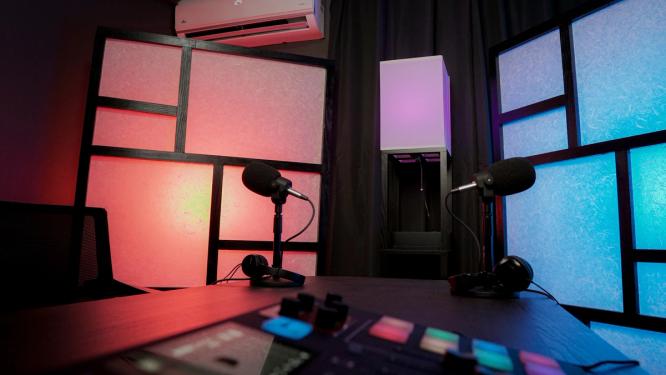





Even if you have the perfect microphone technique—sitting exactly four fingers away, angled 30 degrees off-axis to avoid plosives—you are still going to pick up some background noise.
You have an air conditioner. Your PC fans ramp up when you game. You might live near a busy street. This is normal.
To fix it, you need software noise suppression. But if you pick the wrong tool, you won't just remove the background noise—you will actively destroy your stream's audio. The wrong filter will chop off your laughs, mute your hype reactions, and tank your game's framerate.
Here is exactly how to choose the right noise suppression for your setup.
The FPS Killer: Nvidia Broadcast
Nvidia Broadcast (and the Nvidia Noise Removal tool inside OBS) is one of the most heavily marketed tools out there. A lot of people use it, and most of them shouldn't.
Nvidia Broadcast uses the Tensor and CUDA cores on your graphics card to process audio. Those are the exact same cores your GPU needs to render frames for your game and encode your stream via NVENC. When you turn on Nvidia Broadcast, it directly competes with your game for hardware resources. It will tank your FPS. NVIDIA effects SDK is virtually the same but directly in OBS rather than it’s own app.

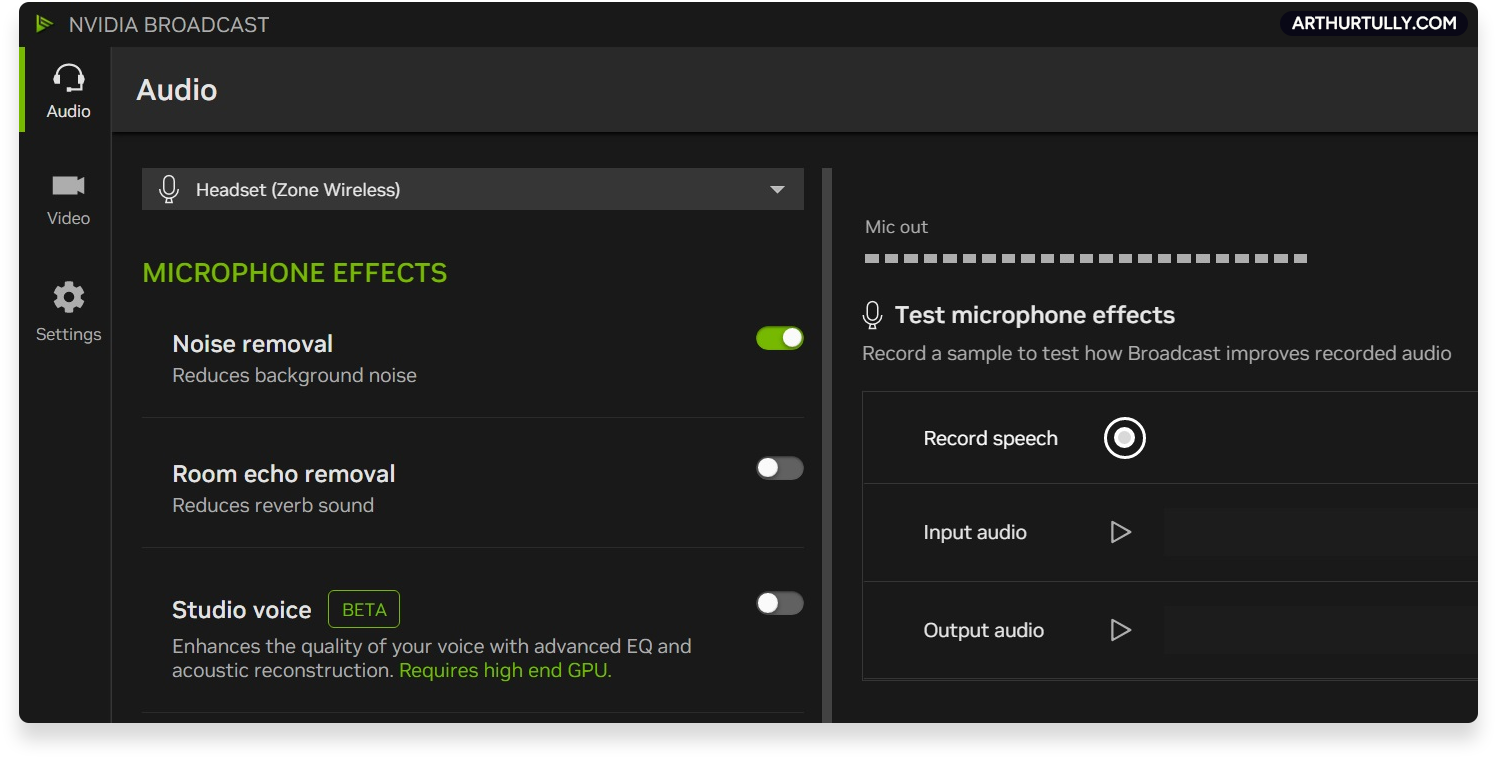
Furthermore, it aggressively prioritizes removing noise over preserving the natural frequencies of your voice. You end up sounding overly compressed and unnatural.
When should you use it? Only if you are streaming from a literal construction site. If you just have a loud AC unit or a PC fan, skip it.
The Reliable Workhorse: OBS Speex
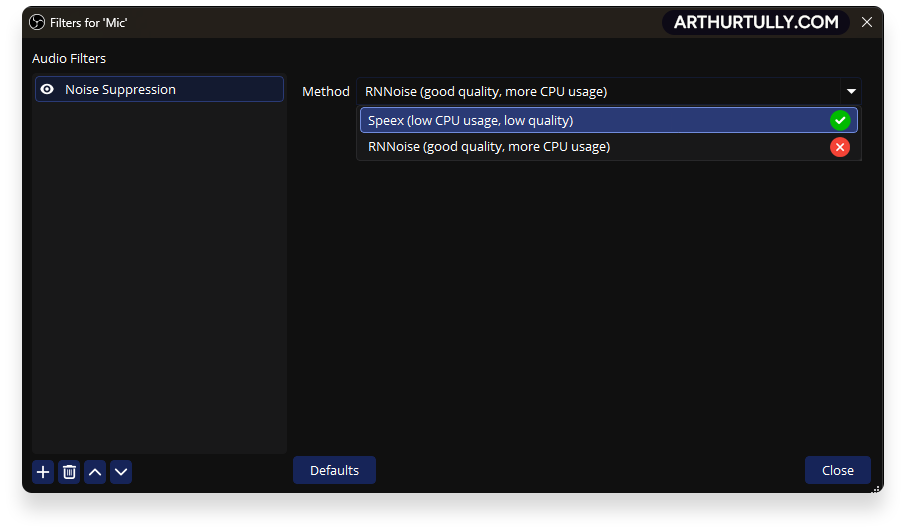
When you add a Noise Suppression filter in OBS, you'll see an option called Speex (Low CPU usage, low quality).
Do not let the "low quality" label fool you. For 80% to 90% of streamers, this is the exact setting you should be using.

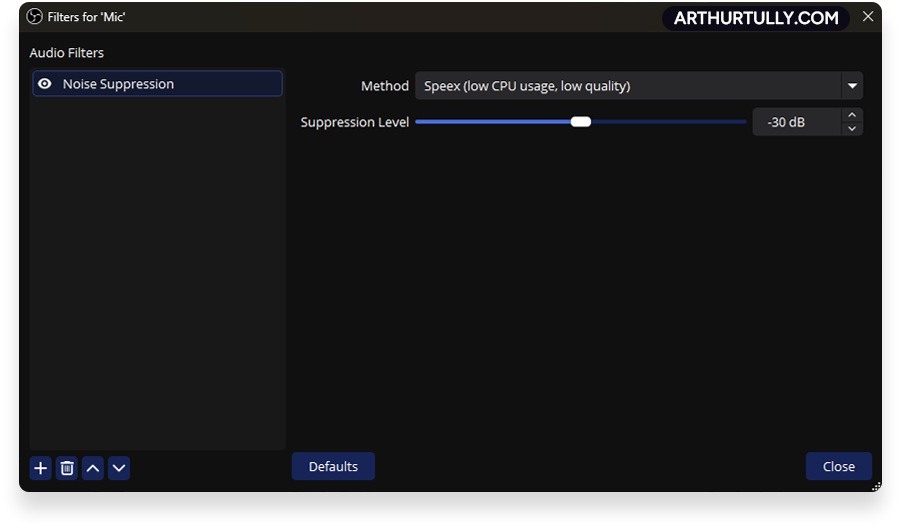
Speex is a traditional algorithm. It listens for repeating background sounds—like the hum of a PC fan or the drone of an air conditioner—and removes them. Because it runs on your CPU and uses virtually no resources, it won't impact your game performance. Use this as your default unless you have a specific reason not to.
The Scream Killer: OBS RNNoise
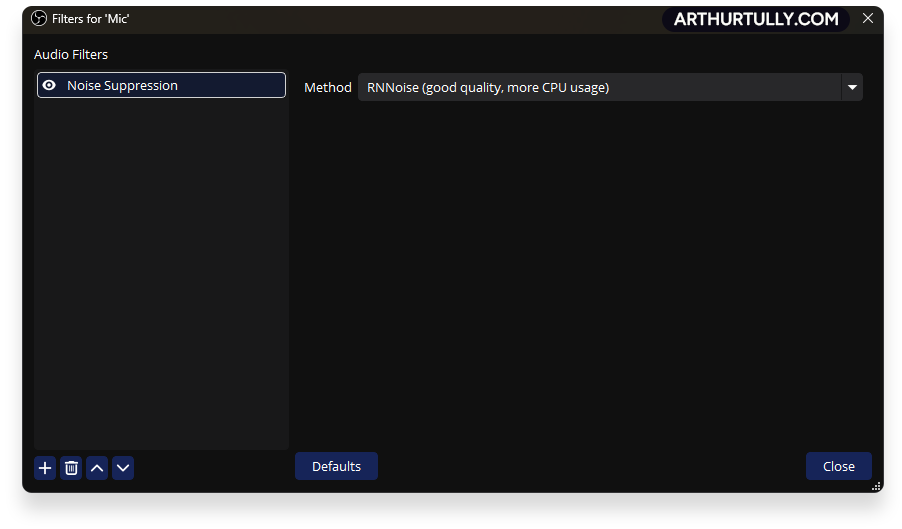
The other default option in OBS is RNNoise (Good quality, more CPU usage). This is an AI-based neural network.
RNNoise does a fantastic job of killing repeating noises, and it even tones down room reverb. But it lacks sophistication when it comes to volume. If your voice suddenly gets loud, RNNoise treats that loudness as a noise anomaly and immediately clamps down on it.

"If you use RNNoise and play horror games, or if you regularly jump up and yell when you clutch a round, the filter will mute your voice for a split second right at the peak of the hype moment. It ruins the clip entirely."
When should you use it? Avoid RNNoise for gaming. Only use it for calm, talking-head videos, storytimes, or business meetings where you know you won't be projecting your voice.

The VST Upgrades: SpeexDSP and RNN 1.1
If you want better performance than the default OBS filters, you can use third-party VST plugins.
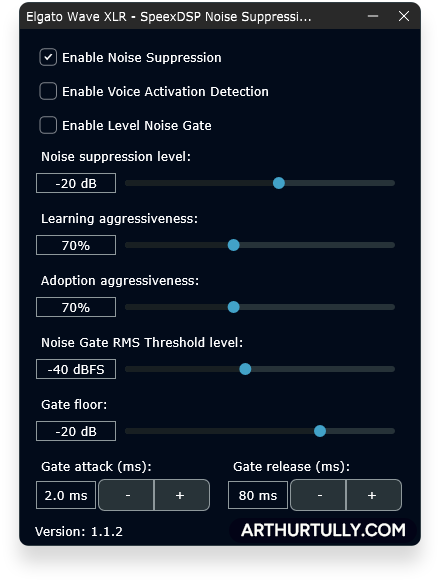
SpeexDSP: This is the upgraded version of the standard Speex filter. It handles fan and AC noise in a much more sophisticated manner without eating your CPU. Note: SpeexDSP is a VST3 plugin. It works natively in Elgato Wavelink, but if you want to use it directly in OBS, you will need to install an OBS VST3 support plugin.

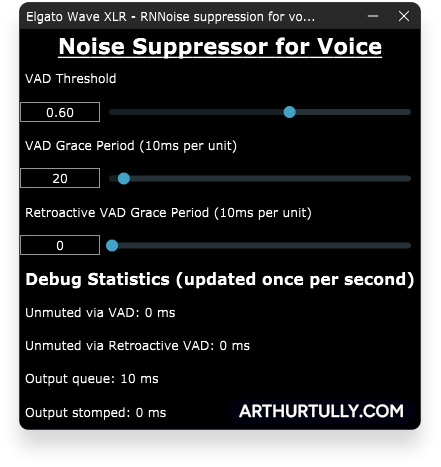
RNN 1.1: This is a vast improvement over the original RNNoise. It handles transients better, but the same warning applies: it is still best suited for calm, business-style speaking rather than high-energy streaming. Because it is available as a VST2, you can drop it directly into OBS or Wavelink without extra steps.

The Best on the Market: Elgato Voice Focus
If you want the absolute best noise suppression available right now, it is Elgato Voice Focus.
Voice Focus is an AI-trained model that accurately separates human speech from background noise without chopping off your loud moments or degrading your voice quality. In my experience, it easily beats the proprietary options from Shure, Rode, and Nvidia.

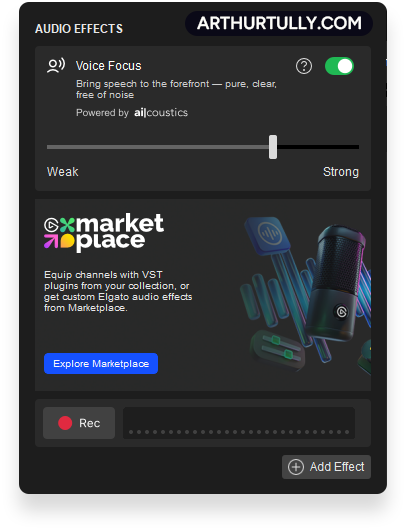
Here is the best part: if you own an Elgato audio interface—like the Wave XLR, Wave:3, Wave 1, Wave Neo, or the Stream Deck+ XLR Dock—you get Voice Focus for free inside the Wavelink software. If you don't use Elgato hardware, you can buy the plugin outright for $50 (it runs as a VST3).
- Elgato Wave XLR MK2
- Elgato XLR Dock MK.2
The Discord Trap: Turn Off Krisp
If you stream while sitting in a Discord call with your friends, you need to check your Discord voice settings immediately.
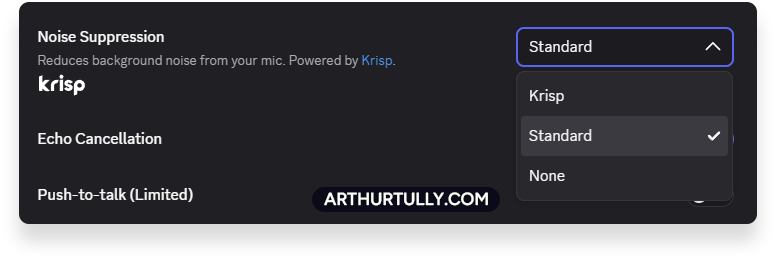
Discord uses an AI noise suppression tool called Krisp. It acts exactly like the old RNNoise. If you laugh, clap your hands, or yell, Krisp assumes it's background noise and mutes you. Your friends will only hear half of what you say.
Go into your Discord Voice & Video settings, scroll down to Noise Suppression, and change it from Krisp to Standard. Standard functions like Speex—it removes the fan noise but lets your actual personality through to your friends.

The Golden Rule: Order of Operations
Noise suppression must always be the very first step in your audio processing chain.
You want to clean the audio before you do anything else to it. If you put an EQ or a compressor before your noise suppression, you are just boosting and compressing the sound of your AC unit.
Remove the noise first, then EQ the voice. (Elgato Wavelink actually forces Voice Focus to be the first unmovable block in your chain for this exact reason. If you build your chain in OBS, make sure Noise Suppression is at the very top of the filter list).
Stop Guessing. Let Me Build Your Audio Chain.
Good audio is a process. First, you get the physical mic technique right. Second, you strip away the room noise with the correct suppression tool. Finally, you apply EQ, compression, and limiting to make your voice cut through the game mix.
You can spend weeks testing VSTs and tweaking sliders, or you can get it done today.
Book a 1-on-1 audio setup session with me. You give me remote access via AnyDesk, we hop on a Discord call, and I will install, route, and perfectly calibrate your entire audio chain for your specific hardware and voice. You just hit record.